
TL;DR
A strong portrait match cut keeps the eyes and face size steady while clothing or scenery changes. Start with three similarly framed photos, align their eye positions, and test straight cuts before adding effects. AI alignment can help position images, but consistent source portraits still matter.
A portrait reel can change outfits, settings, and mood while keeping the face visually anchored. An image match cut for profile photo reels creates that effect by matching the composition between consecutive images. For job seekers, creators, and business owners, the result can feel more intentional than a slideshow. Looktara offers an eye-aligned match-cut tool for turning photos into GIFs or videos. The strongest starting point, however, is a small set of portraits planned around the same visual anchor.
Table of Contents
What is an image match cut for profile photo reels?
An image match cut for profile photo reels is an edit that connects portraits through matching composition, usually by keeping the eyes, face size, and head position consistent. Clothing or backgrounds can change between images while the face remains visually anchored, helping separate photographs read as a connected sequence.
Match cut: A cut between shots whose composition matches through action, subject, or subject matter.
Eye alignment: Positioning portraits so the eyes occupy matching locations in the output frame.
Visual anchor: The feature that remains steady across a transition, such as the eye line or face outline.
For portraits, the eyes make a useful anchor because viewers naturally follow the face. A centered headshot followed by another centered headshot creates a different effect from a wide portrait followed by a close-up: the first emphasizes transformation; the second emphasizes a framing change.
Match cuts, dissolves, and morphs serve different purposes
A match cut connects composition rather than blending the images together.
| Transition | What happens | Useful portrait application |
|---|---|---|
| Match cut | One image replaces another with a shared visual anchor | Outfit or setting changes around a steady face |
| Dissolve | Two images overlap during the transition | A softer change between portraits |
| Morph | Intermediate imagery changes one image toward another | A deliberately animated transformation |
A smooth-looking match cut doesn't require a dissolve. Consistent placement can make a straight cut feel connected.
How should AI portraits be planned for matching cuts?
- Choose the eyes as the shared anchor for the portrait match cuts.
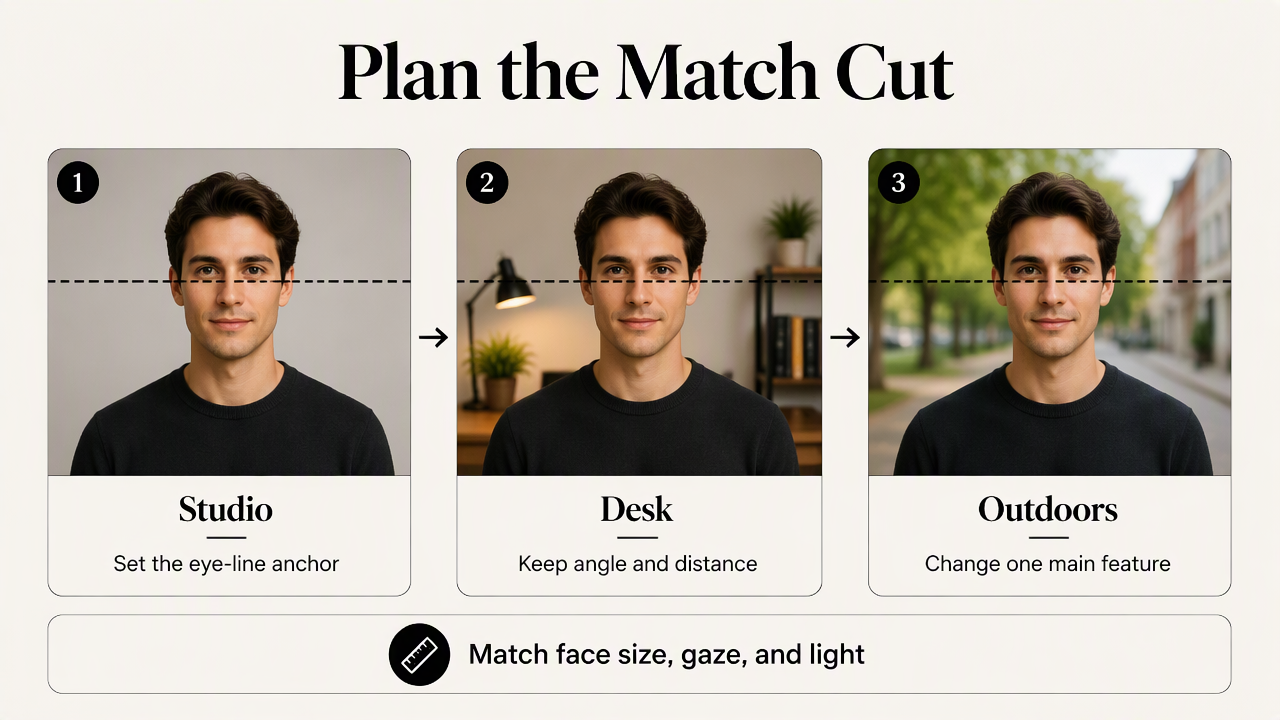
- Keep head angle, gaze, and camera height consistent.
- Request the same crop and apparent camera distance.
- Change one main feature, such as clothing or background.
- Select portraits with matching face size and lighting direction.
Lock the portrait geometry before changing the scene
Portrait geometry should stay consistent while the setting supplies the contrast.
A useful three-image example starts with a front-facing studio portrait, moves to a desk setting, and ends outdoors. All three can use a chest-up crop, a level head, and a relaxed expression. The background changes tell the story without requiring the viewer to relocate the face.
Leave some space above the hair and beside the shoulders. That margin allows an editor to reposition each image without cropping essential features. Keeping the light direction similar also makes the switch easier to read, even when background colors differ.
For a fitness creator building a coordinated portrait set, a fitness Instagram profile-picture generator is a relevant starting point for the source-image task.
A reusable prompt-and-shot checklist
A repeatable prompt separates fixed composition from the detail that changes.
Example prompt: Photorealistic chest-up portrait of the same adult subject, facing forward, eyes toward the camera, level head, relaxed expression, centered composition, soft light from camera left, space above the hair, plain neutral background, navy jacket.
For the next portrait, replace only the final background or clothing instruction. Treat the prompt as a planning aid, not a guarantee of identical output.
- Subject: Same person and recognizable facial features.
- Pose: Same head angle, gaze, and expression.
- Framing: Same crop, eye height, and face size.
- Light: Similar direction and softness.
- Variation: One intentional change per image.
- Selection: Compare the actual portraits before editing.
How are portrait photos aligned and edited into a reel?
- Create a vertical canvas for the portrait reel.
- Place the reference image and mark both eye positions.
- Scale and move each following portrait to match those points.
- Check head angle and shoulder placement.
- Arrange straight cuts at a consistent pace.
- Preview the sequence and export a test video.
Use two eye points to guide the alignment
Matching both eyes helps control position, scale, and in-plane rotation.
In a manual editor, place the second portrait above the first and temporarily lower its opacity. Move the image until the eye midpoint matches, then scale it until the distance between the eyes is similar. A small rotation can correct a slight tilt, but it won't turn a side-facing head into a front-facing portrait.
Eye placement alone doesn't settle every detail. After alignment, compare the chin, hair outline, and shoulders. If the eyes match but the lower face shifts noticeably, a more similar source image may be the cleaner choice.
Align the face first, then judge the whole silhouette. A matching eye line is an anchor, not a substitute for matching pose.
Set pacing and review the mobile composition
Consistent pacing gives the visual change room to register.
As a starting experiment, three portraits displayed for one second each create a three-second sequence. Those timings are an editing example, not a performance benchmark. Hold the final portrait longer if it needs to carry a name or role, and compare versions with and without music.
Keep text away from the face and check the exported video at phone size. Platform interface elements can cover parts of the frame, so the upload preview matters as much as the editor preview.
A cover deserves its own composition rather than an arbitrary transition frame. Fitness creators can prepare a dedicated Instagram reel cover; a professional version may call for a LinkedIn-oriented reel cover. A coordinated cover helps the finished reel sit naturally beside other profile content.
How Looktara handles this
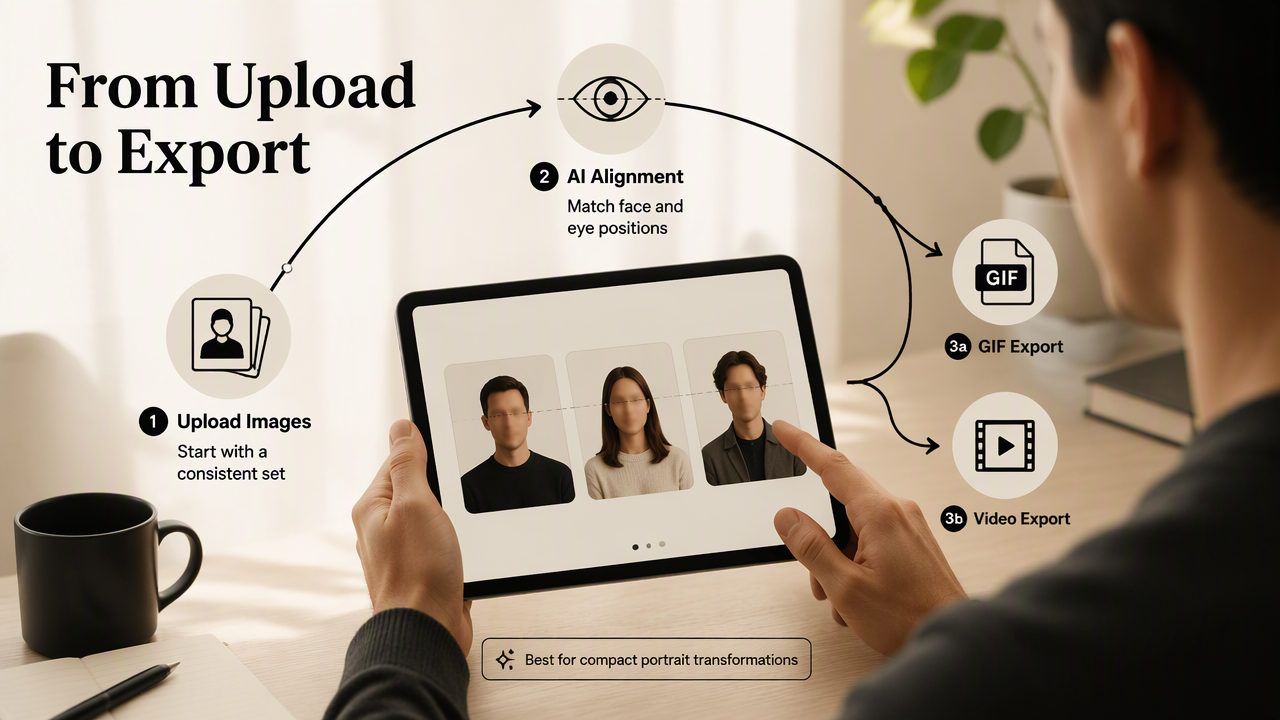
The Looktara platform handles portrait match-cut animation with AI face and eye alignment and provides GIF or video export options. Its described workflow centers on uploading images and generating an aligned sequence, making it relevant when the main task is connecting existing portraits rather than building a larger edited production.
Choose the workflow around the intended deliverable
An alignment-focused tool suits a compact portrait transformation, while a general video editor suits a sequence requiring broader production control.
- Aligned portrait animation: Start with a small, consistently framed image set and test the upload-and-export workflow.
- Branded introduction: Use a general editor when titles, voiceover, music timing, or several scenes need detailed arrangement.
- Profile refresh: Coordinate the reel's final portrait with the account's profile image and cover treatment.
A useful first test is a studio-to-workplace-to-casual sequence with one steady gaze. That gives the changing settings a clear purpose: showing different sides of the same professional identity.
FAQ: Portrait match cuts and export choices
Portrait match-cut decisions depend on source-image consistency, the intended audience, and the destination's accepted formats.
Can still photos create a match-cut reel?
Still photos can create a match-cut reel when consecutive images share a clear visual anchor. Live footage isn't required for a composition-based transition. The editor places each portrait on a timeline and aligns the faces before cutting between them. Similar head angles and crops make the connection easier to establish.
Does every portrait need the same background?
Portraits don't need identical backgrounds because a match cut can connect the face while the setting changes. Similar background brightness or simple shapes can make that change easier to follow. A studio-to-office sequence works best when the head stays steady and the new setting supports the intended professional story.
Should the finished sequence be a GIF or video?
The finished sequence should use the format accepted by its destination. For a reel upload, check the platform's current video requirements rather than assuming GIF support. A GIF can suit a looping preview elsewhere. Review the actual exported file for dimensions, image clarity, timing, and any added audio before publishing.
Are AI portraits suitable for professional or dating profiles?
AI portraits can support profile content when they remain recognizable and represent the person honestly. Professional imagery should communicate an appropriate role and style without implying credentials or affiliations. Dating imagery should reflect current appearance. Follow the destination's current rules and disclose AI involvement where required or relevant to audience expectations.
The transition should support the portrait's purpose, not distract from the person.
Conclusion
Start an image match cut for profile photo reels with three portraits, one fixed eye line, and one deliberate change per frame. Align the images, preview straight cuts, then prepare a cover suited to the destination. For an eye-aligned animation test, visit looktara.com and try Looktara with the selected portrait set before assembling a longer reel.
Generated by EarlySEO.com